> ## Documentation Index
> Fetch the complete documentation index at: https://alexcode.ai/docs/llms.txt
> Use this file to discover all available pages before exploring further.
# Voice Mode
> Use voice commands to interact with Alex Sidebar more naturally
## Overview
Voice Mode allows you to interact with Alex Sidebar using speech instead of typing, making code discussions more natural and efficient. This feature is particularly useful when you need to explain complex problems or want to reduce typing fatigue.
 ## Quick Actions
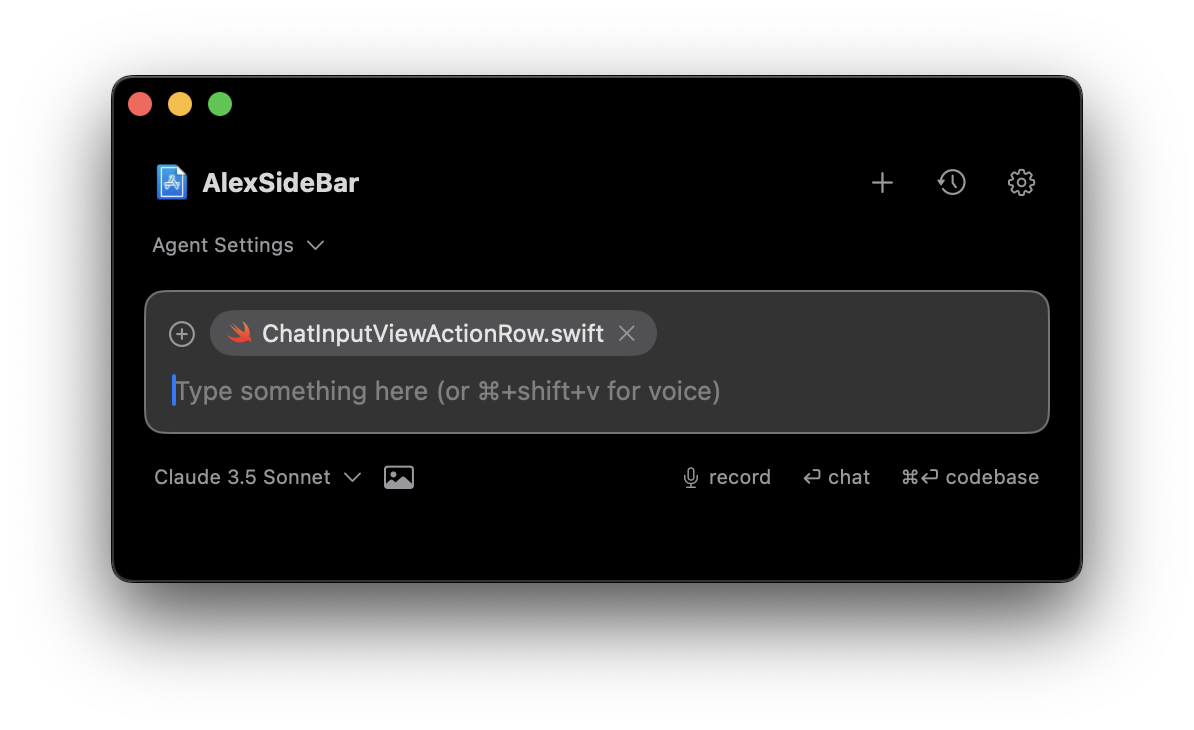
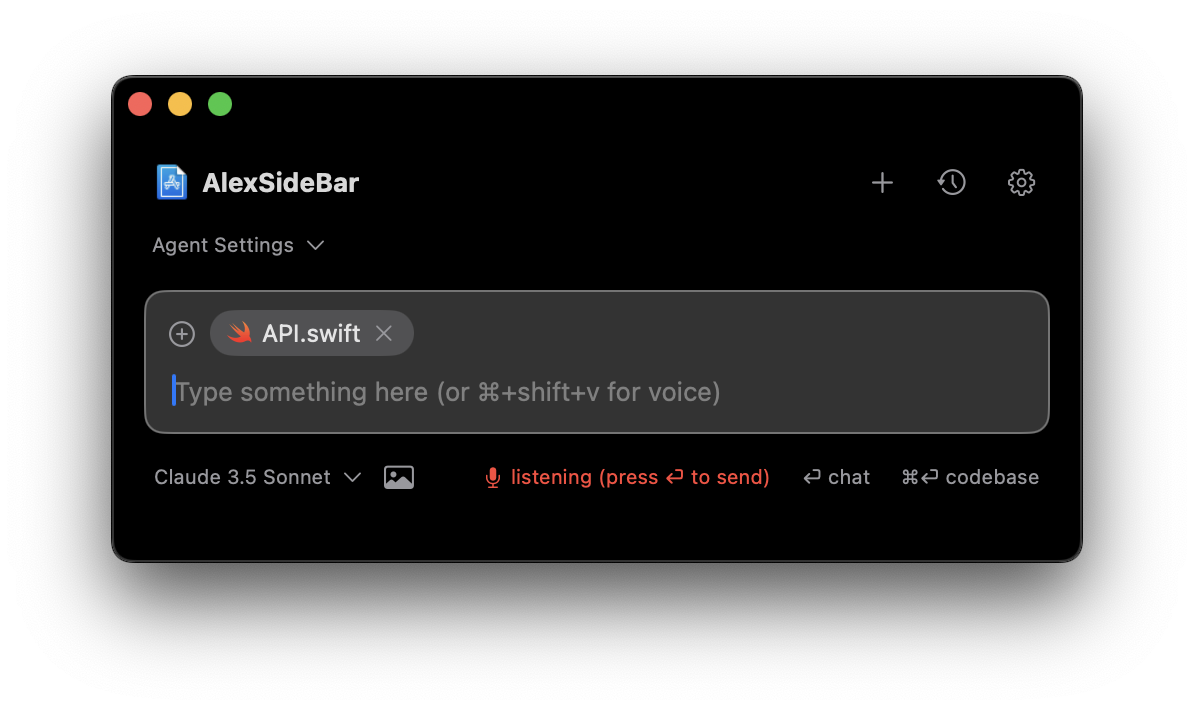
Toggle voice recording on/off. Use this shortcut to quickly start or stop voice input without clicking.
Click the microphone icon in the chat input area to start/stop recording.
## Using Voice Mode
1. Open Settings (gear icon)
2. Navigate to Chat Settings
3. Enable Voice Mode
## Quick Actions
Toggle voice recording on/off. Use this shortcut to quickly start or stop voice input without clicking.
Click the microphone icon in the chat input area to start/stop recording.
## Using Voice Mode
1. Open Settings (gear icon)
2. Navigate to Chat Settings
3. Enable Voice Mode
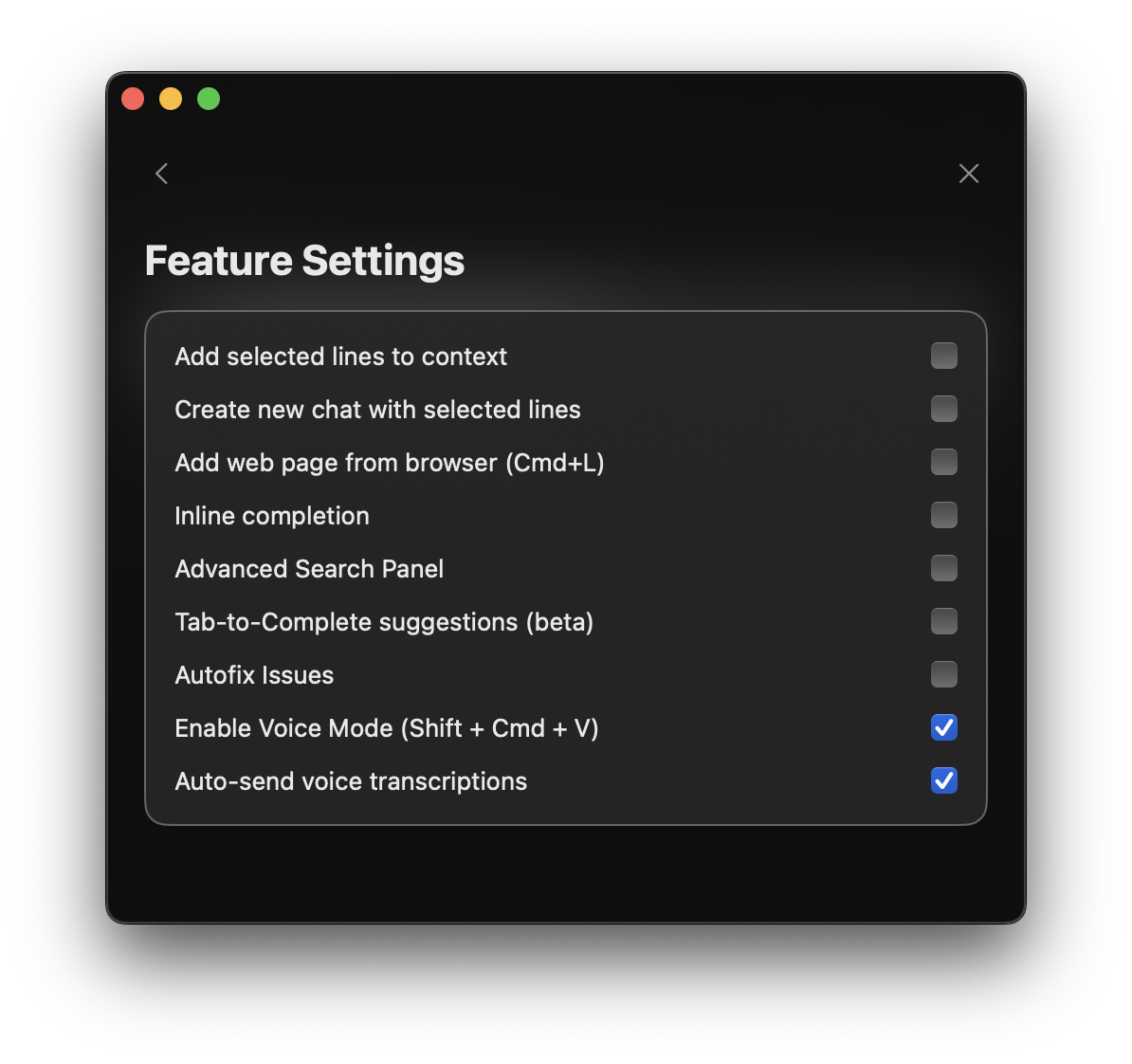 Voice Mode requires microphone permissions. You will be prompted to grant access when first enabling this feature.
Two ways to start:
* Press **Command + Shift + V**
* Click the microphone icon
Voice Mode requires microphone permissions. You will be prompted to grant access when first enabling this feature.
Two ways to start:
* Press **Command + Shift + V**
* Click the microphone icon
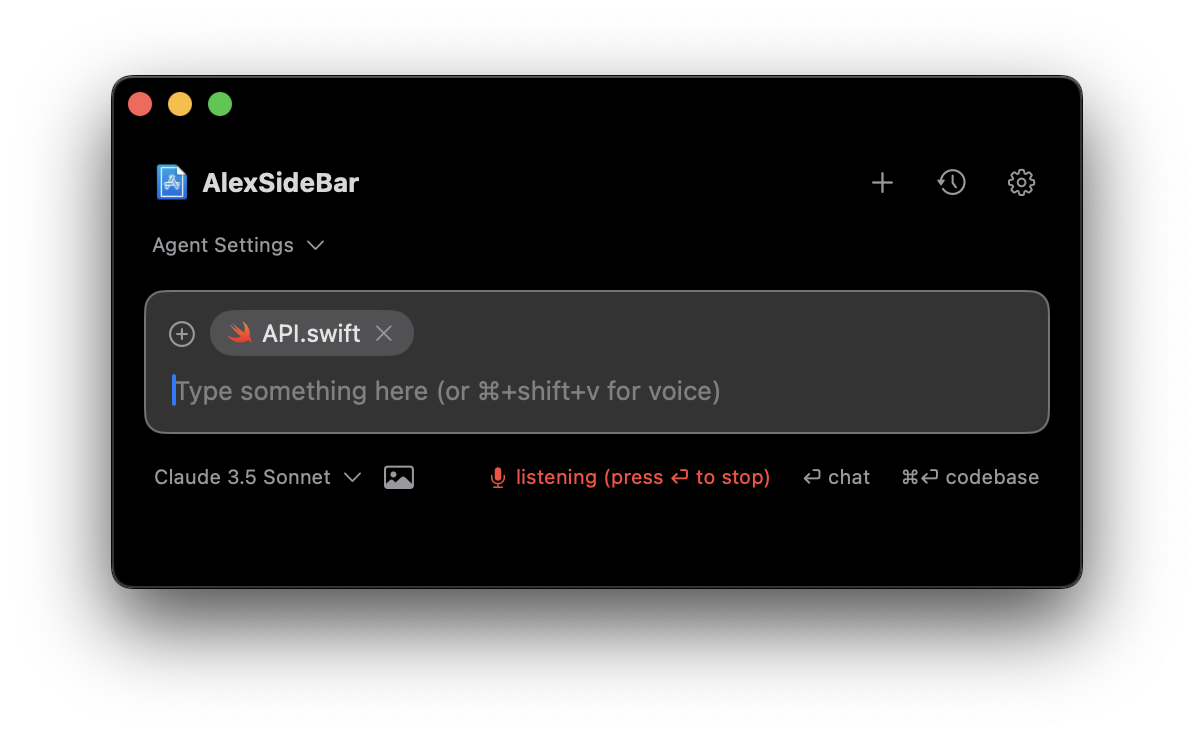 Speak clearly into your microphone.
Use any of these methods to stop:
* Press **Command + Shift + V** again
* Click the microphone icon
* Press **Return/Enter** key
* Press **Escape** key to cancel recording
Your speech will be automatically transcribed and inserted into the chat input box.
Speak clearly into your microphone.
Use any of these methods to stop:
* Press **Command + Shift + V** again
* Click the microphone icon
* Press **Return/Enter** key
* Press **Escape** key to cancel recording
Your speech will be automatically transcribed and inserted into the chat input box.
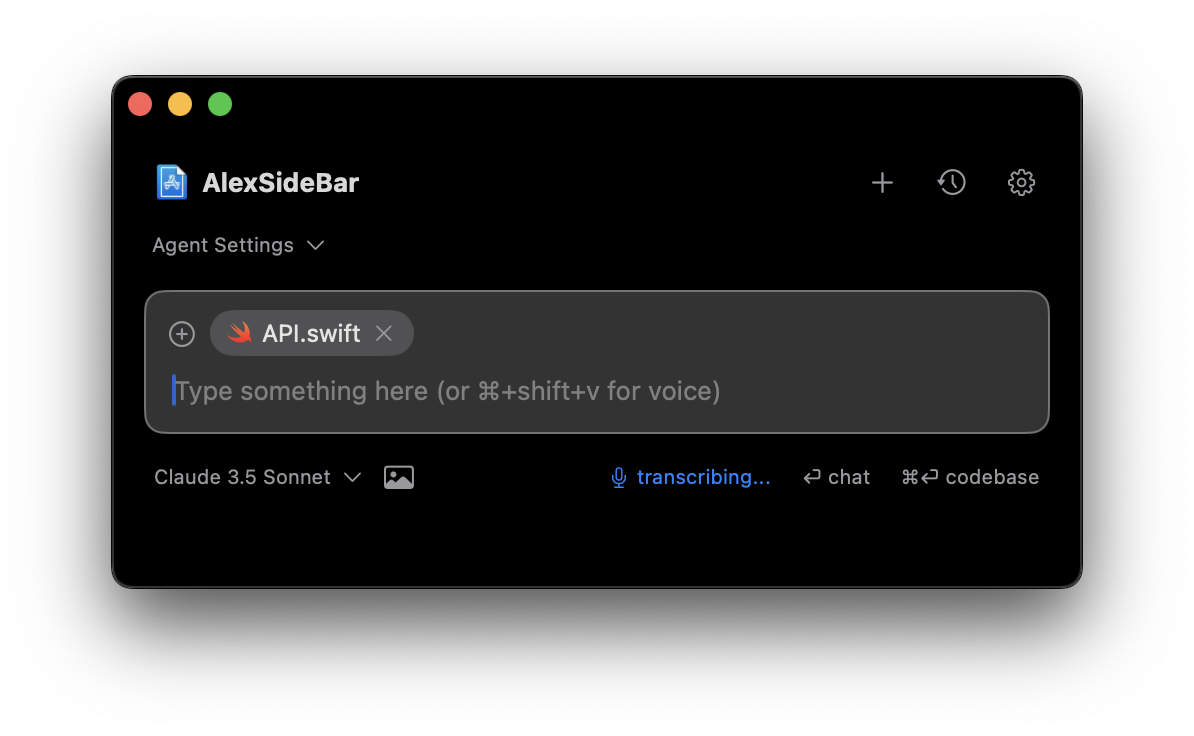 Use the Escape key if you want to cancel the recording without transcribing the audio.
## Auto Mode
Enable "Auto Mode" in settings to automatically send transcribed messages:
* Finish speaking and stop recording
* Press Return/Enter
* Message sends automatically and starts AI inference
Use the Escape key if you want to cancel the recording without transcribing the audio.
## Auto Mode
Enable "Auto Mode" in settings to automatically send transcribed messages:
* Finish speaking and stop recording
* Press Return/Enter
* Message sends automatically and starts AI inference
 ## Best Practices
* Speak at a natural pace
* Enunciate clearly
* Avoid background noise
* Use technical terms carefully
* Use voice for longer explanations
* Review transcription before sending
* Combine with code selection
## Accessibility Benefits
Voice Mode makes Alex more accessible and easier to use for everyone.
* When you are coding for long periods, **Voice Mode** lets you take breaks from typing while staying productive.
* For developers with mobility challenges or strain injuries, voice input provides a comfortable way to interact with Alex. You can dictate code explanations and questions instead.
* Having voice as an additional input option means you can choose what works best for you in different situations. Sometimes speaking is just more convenient than typing.
And when you need to explain complex concepts or walk through detailed logic, speaking it out loud often feels more natural and fluid than typing it all out.
## Best Practices
* Speak at a natural pace
* Enunciate clearly
* Avoid background noise
* Use technical terms carefully
* Use voice for longer explanations
* Review transcription before sending
* Combine with code selection
## Accessibility Benefits
Voice Mode makes Alex more accessible and easier to use for everyone.
* When you are coding for long periods, **Voice Mode** lets you take breaks from typing while staying productive.
* For developers with mobility challenges or strain injuries, voice input provides a comfortable way to interact with Alex. You can dictate code explanations and questions instead.
* Having voice as an additional input option means you can choose what works best for you in different situations. Sometimes speaking is just more convenient than typing.
And when you need to explain complex concepts or walk through detailed logic, speaking it out loud often feels more natural and fluid than typing it all out.