> ## Documentation Index
> Fetch the complete documentation index at: https://alexcode.ai/docs/llms.txt
> Use this file to discover all available pages before exploring further.
# Overview
> Learn how to use Alex Sidebar's chat for code assistance
Alex Sidebar's chat feature enables code discussions and improvements in Xcode running on the side. By prompting your queries, you can assist your coding process and resolve issues more quickly.
## Quick Actions
Click this button in the main view to automatically build your project and fix all compilation errors in a continuous loop until success.
Select code in Xcode to start a **new chat**. The selected content will automatically be added as a reference.
Add selected code to your existing chat without opening a new window. Perfect for building context incrementally.
Start a chat with entire codebase as context. Useful for high-level questions
about your project.
Access documentation, add more files and more using the @ menu in your chat.
Copy-paste or drag images directly into chat for design analysis and code generation. Perfect for UI discussions and visual debugging.
## Copy Request Button
Perfect for using the most powerful models like o3 Pro or models with massive context windows like Gemini 2.5 Pro (1M+ tokens).
The Copy Request button lets you export your code context to use with external AI services:
Look for the copy icon at the bottom of any message in your chat
Clicking copies:
* All code context and file contents
* Your current query
* Formatted for easy pasting
Paste the copied content into:
* **ChatGPT o3-pro** - For the most powerful reasoning
* **Google AI Studio** - For Gemini 2.5 Pro with 1M+ token context
## Getting Started
In Xcode's editor window, highlight the code you want to discuss or improve.
Providing relevant code context helps the AI better understand your
question and provide more accurate responses.
Select code and press **Command + L** to start a chat.
Additional ways to start a chat:
* Click the chat (plus) icon in the top right of the sidebar
* Click the **"Build & Fix Errors"** button for automatic error resolution
* Use **Command + Enter** for a new chat with full codebase context
The more relevant context you provide, the more accurate and helpful the
responses will be.
## Context Management
* Chats are automatically saved
* Access previous chats from history
* Clear individual history
* Reference multiple files in one chat
* Generate changes for multiple files
## Common Use Cases
* Select complex functions or blocks
* Press **Command + L**
* Ask for step-by-step explanations
* Get detailed breakdowns of code behavior
* Highlight code that needs improvement
* Start a chat with **Command + L**
* Request refactoring suggestions
* Apply changes directly from chat
* Select problematic code sections
* Include error messages if available
* Ask for debugging assistance
* Get targeted solutions and fixes
## Applying Changes
* Smart and fast code diff
* Handles both simple and complex changes
* Chunks mode enabled by default for better handling
* Quick Apply for instant changes without diff panel
* Fast-forward button (⏩) for instant application
* Perfect for all types of code modifications from quick fixes to refactoring
## Think First Mode
The "Think First" option combines DeepSeek R1's reasoning capabilities with Claude's responses for the best possible results. When enabled:
1. DeepSeek R1 first reasons about the problem using thinking tokens
2. This analysis is then used to guide Claude's response
3. Results in more thorough and accurate solutions
Think First mode can be toggled for individual messages using the "Think first" option under each message input.
## Best Practices
* Be specific about what you want
* Provide necessary context
* Use appropriate commands
* Break complex questions into smaller parts
* Keep context focused and relevant
* Remove unnecessary files
* Update context when switching tasks
* Clear context for new topics
Need more detailed guidance? Learn more about best practices in our [Best Practices guide](/best-practices).
## Web Search Integration
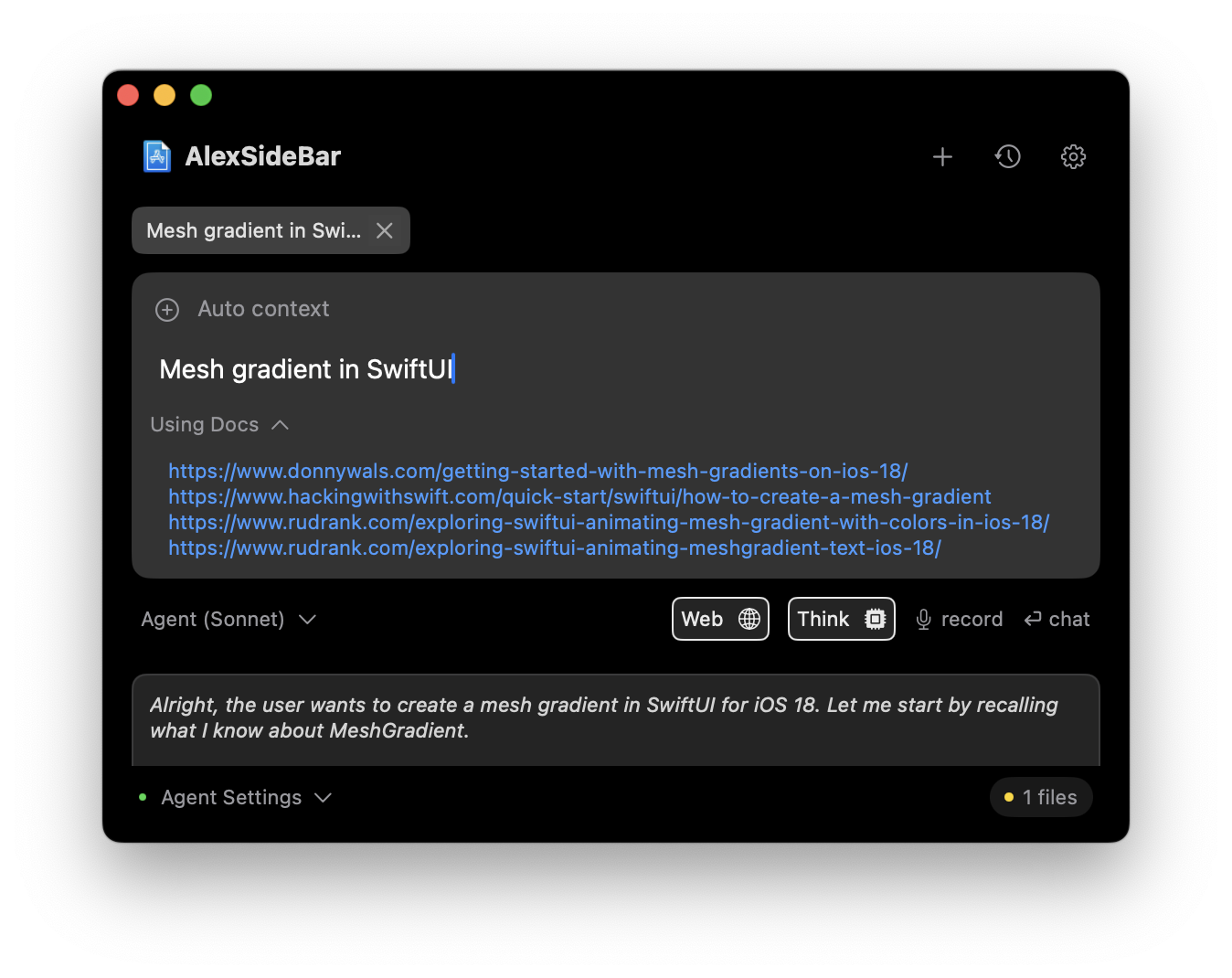 The **Web** button in chat provides access to curated iOS development resources. When enabled:
* Automatically searches popular iOS development blogs
* Finds relevant GitHub repositories and discussions
* Retrieves up-to-date documentation and examples
### Using Web Search
1. Click the "Web" button in chat
2. Alex searches relevant iOS resources
3. Results are automatically added as context
4. Get responses based on the latest information
The web search feature ensures you get the most current solutions and best practices from the iOS development community.
The **Web** button in chat provides access to curated iOS development resources. When enabled:
* Automatically searches popular iOS development blogs
* Finds relevant GitHub repositories and discussions
* Retrieves up-to-date documentation and examples
### Using Web Search
1. Click the "Web" button in chat
2. Alex searches relevant iOS resources
3. Results are automatically added as context
4. Get responses based on the latest information
The web search feature ensures you get the most current solutions and best practices from the iOS development community.