> ## Documentation Index
> Fetch the complete documentation index at: https://alexcode.ai/docs/llms.txt
> Use this file to discover all available pages before exploring further.
# Error & Warning Resolution
> Learn how to use Alex Sidebar to quickly resolve Xcode errors and warnings
## Quick Fix Integration
Alex Sidebar seamlessly integrates with Xcode's diagnostic system to help resolve errors and warnings efficiently.
Click any error or warning indicator in Xcode's gutter to get instant
AI-powered solutions.
Automatic context gathering and error analysis for targeted fixes.
## Using Quick Fix
Hover over the line containing the red (error) or yellow (warning) indicator in Xcode's, then click the indicator
 Alex Sidebar starts a new chat with the warning and error message and code context.
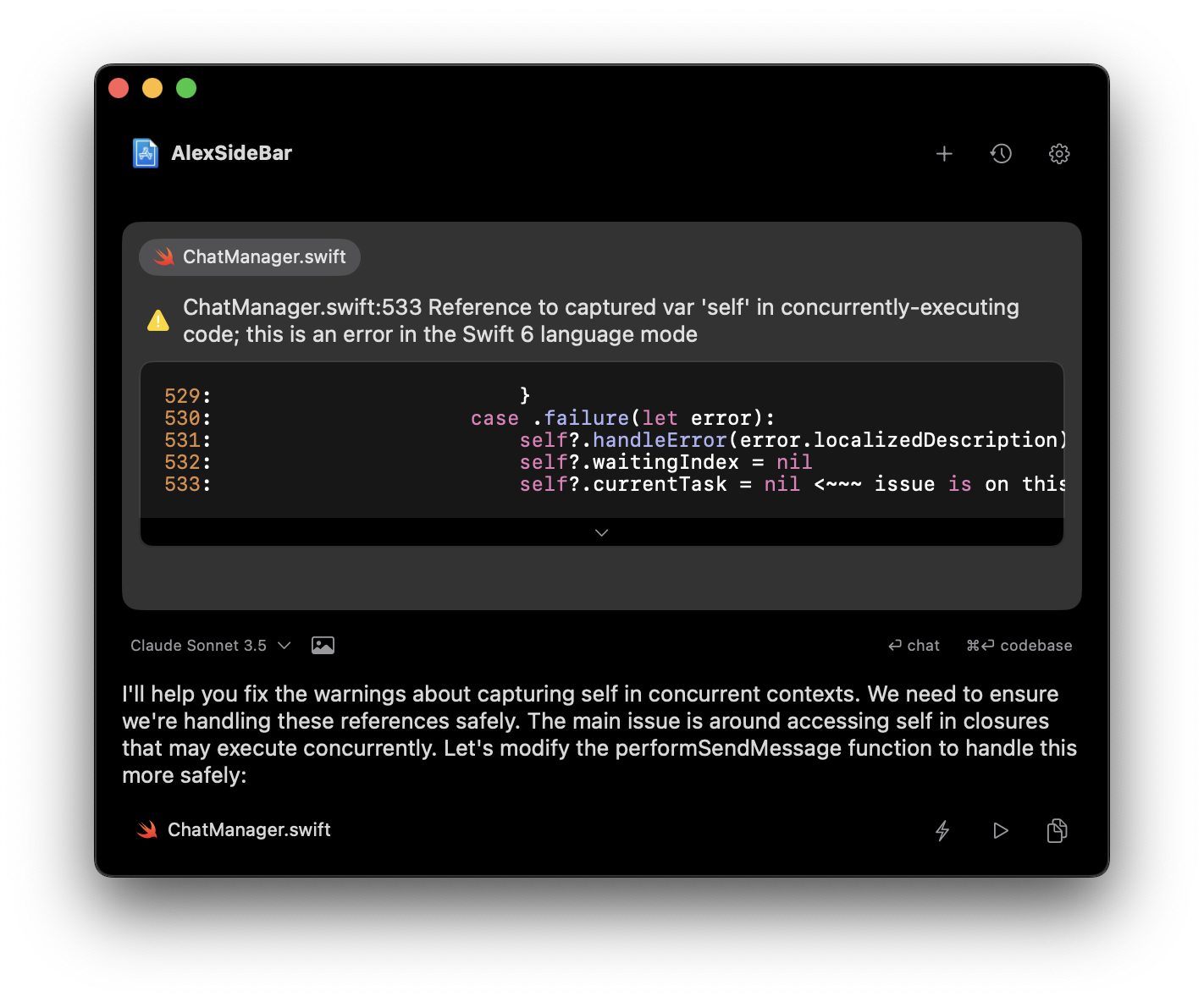 Click "Apply" to implement the suggested changes. The smart apply button will handle both simple fixes like missing imports and complex changes that require accurate diffing. For faster application, use Quick Apply (⏩) to instantly apply changes without the diff panel.
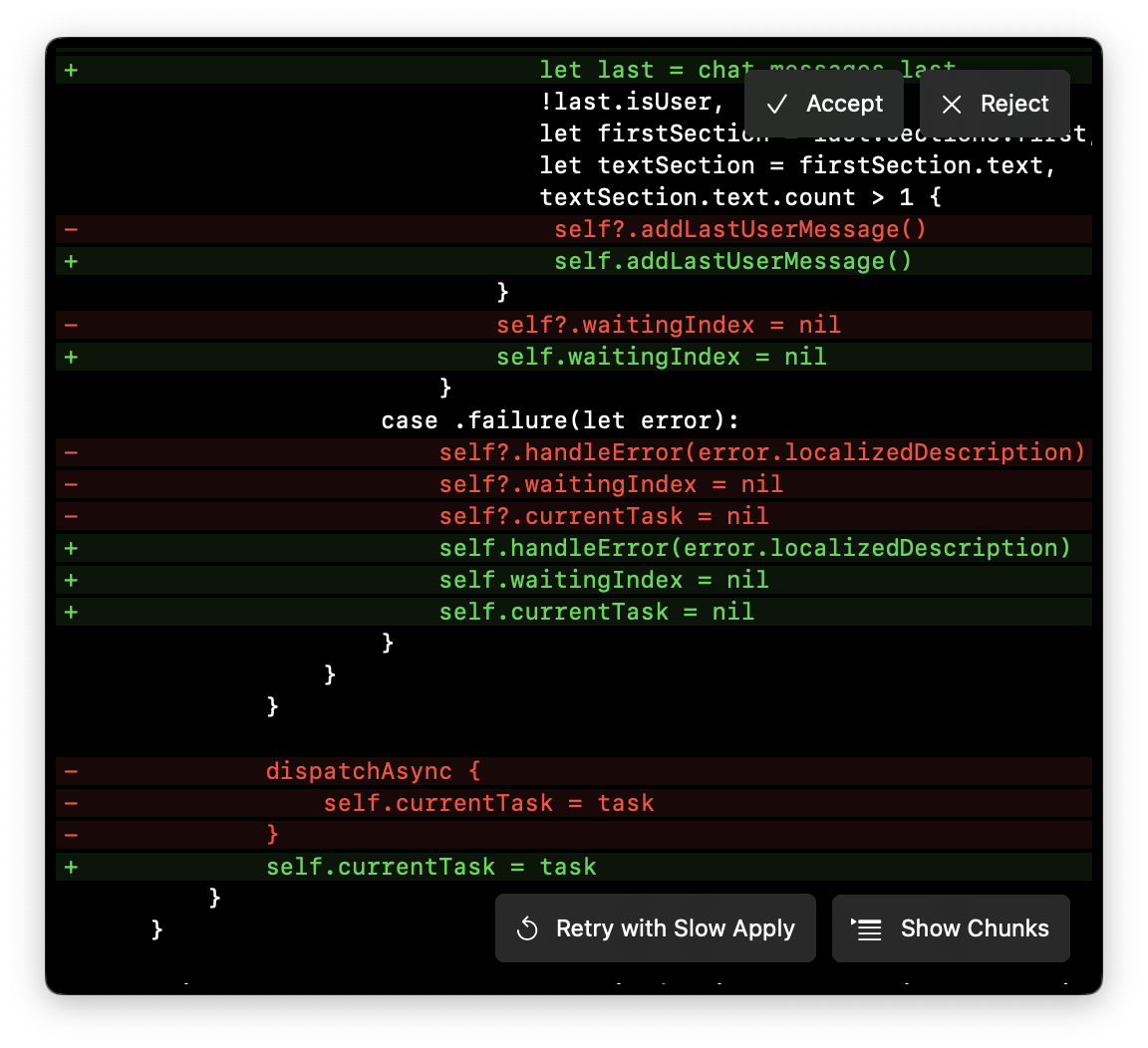 Always review the proposed changes before applying them to ensure they
match your codebase requirements
## Common Fixes
Handles common build-time issues:
* Missing imports
* Type mismatches
* Protocol conformance
* Initialization errors
* Access control issues
Addresses potential runtime problems:
* Memory management
* Thread safety
* Deprecated API usage
* Performance optimizations
* Best practice violations
Resolves preview-specific issues:
* Missing preview providers
* Environment requirements
* Device configuration
* Preview context setup
## Advanced Usage
For specialized error cases:
* Select the problematic code
* Use Command + L to start a chat
* Provide additional context
* Get customized solutions
When dealing with multiple related issues:
* Group similar errors using Command + Shift + L to add the context in the existing chat
* Apply fixes systematically
* Validate changes incrementally
Pro Tip: Use the chat interface for more complex error scenarios that might
require additional context or explanation.
Always review the proposed changes before applying them to ensure they
match your codebase requirements
## Common Fixes
Handles common build-time issues:
* Missing imports
* Type mismatches
* Protocol conformance
* Initialization errors
* Access control issues
Addresses potential runtime problems:
* Memory management
* Thread safety
* Deprecated API usage
* Performance optimizations
* Best practice violations
Resolves preview-specific issues:
* Missing preview providers
* Environment requirements
* Device configuration
* Preview context setup
## Advanced Usage
For specialized error cases:
* Select the problematic code
* Use Command + L to start a chat
* Provide additional context
* Get customized solutions
When dealing with multiple related issues:
* Group similar errors using Command + Shift + L to add the context in the existing chat
* Apply fixes systematically
* Validate changes incrementally
Pro Tip: Use the chat interface for more complex error scenarios that might
require additional context or explanation.