> ## Documentation Index
> Fetch the complete documentation index at: https://alexcode.ai/docs/llms.txt
> Use this file to discover all available pages before exploring further.
# Inline Code Suggestions
> Learn how to use Alex Sidebar's code completion features
## Quick Code Generation
Alex Sidebar provides inline code suggestions and completions **directly in Xcode** to help you write code faster.
Trigger in-file suggestions to get AI-powered completions based on
your current code context.
Get real-time suggestions as you type. Press Tab to accept the highlighted
suggestion.
## Using Inline Completions
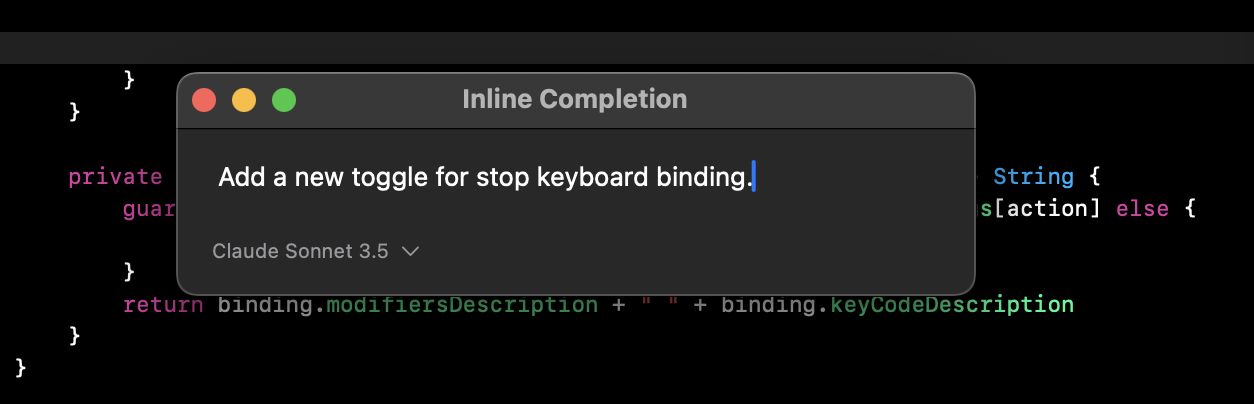 Position your cursor where you want to generate code (or select existing code) in **Xcode** and press **Command + K**
K\*\*
The AI analyzes your current file context to provide relevant suggestions
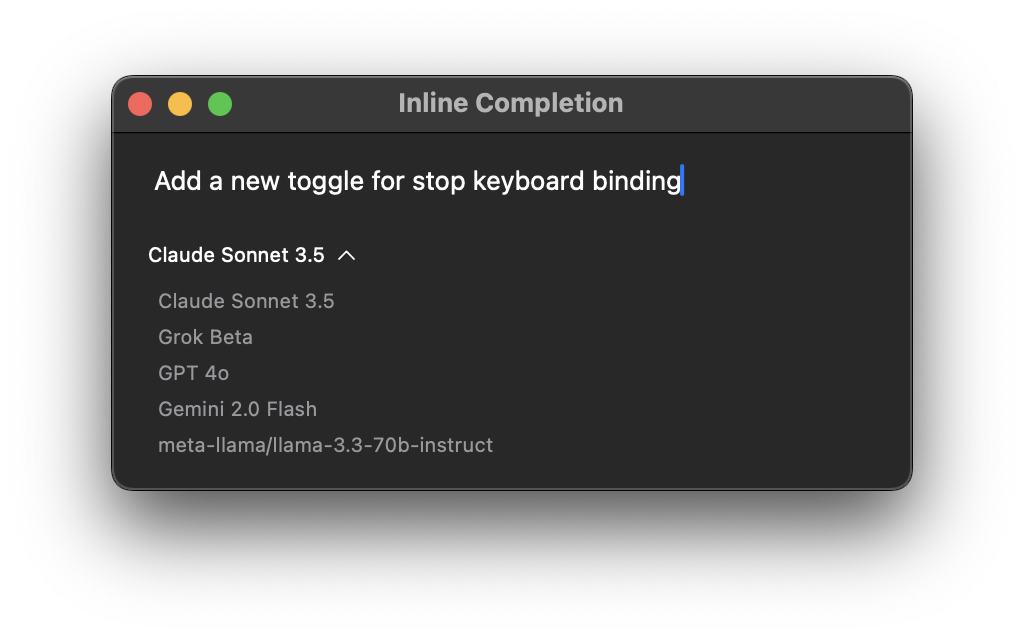
Choose from available AI models for completion:
* Claude 3.5 Sonnet: Advanced model for complex completions
* GPT-4: Balanced performance and accuracy
* Gemini Flash 2.0: Fast, lightweight completions
You can add additional models through the Model Settings, including:
* Local models via Ollama integration
* Custom API-compatible models
* Other OpenAI-compatible endpoints
See the [Model Configuration](/configuration/model-configuration) section for detailed setup instructions.
Position your cursor where you want to generate code (or select existing code) in **Xcode** and press **Command + K**
K\*\*
The AI analyzes your current file context to provide relevant suggestions
Choose from available AI models for completion:
* Claude 3.5 Sonnet: Advanced model for complex completions
* GPT-4: Balanced performance and accuracy
* Gemini Flash 2.0: Fast, lightweight completions
You can add additional models through the Model Settings, including:
* Local models via Ollama integration
* Custom API-compatible models
* Other OpenAI-compatible endpoints
See the [Model Configuration](/configuration/model-configuration) section for detailed setup instructions.
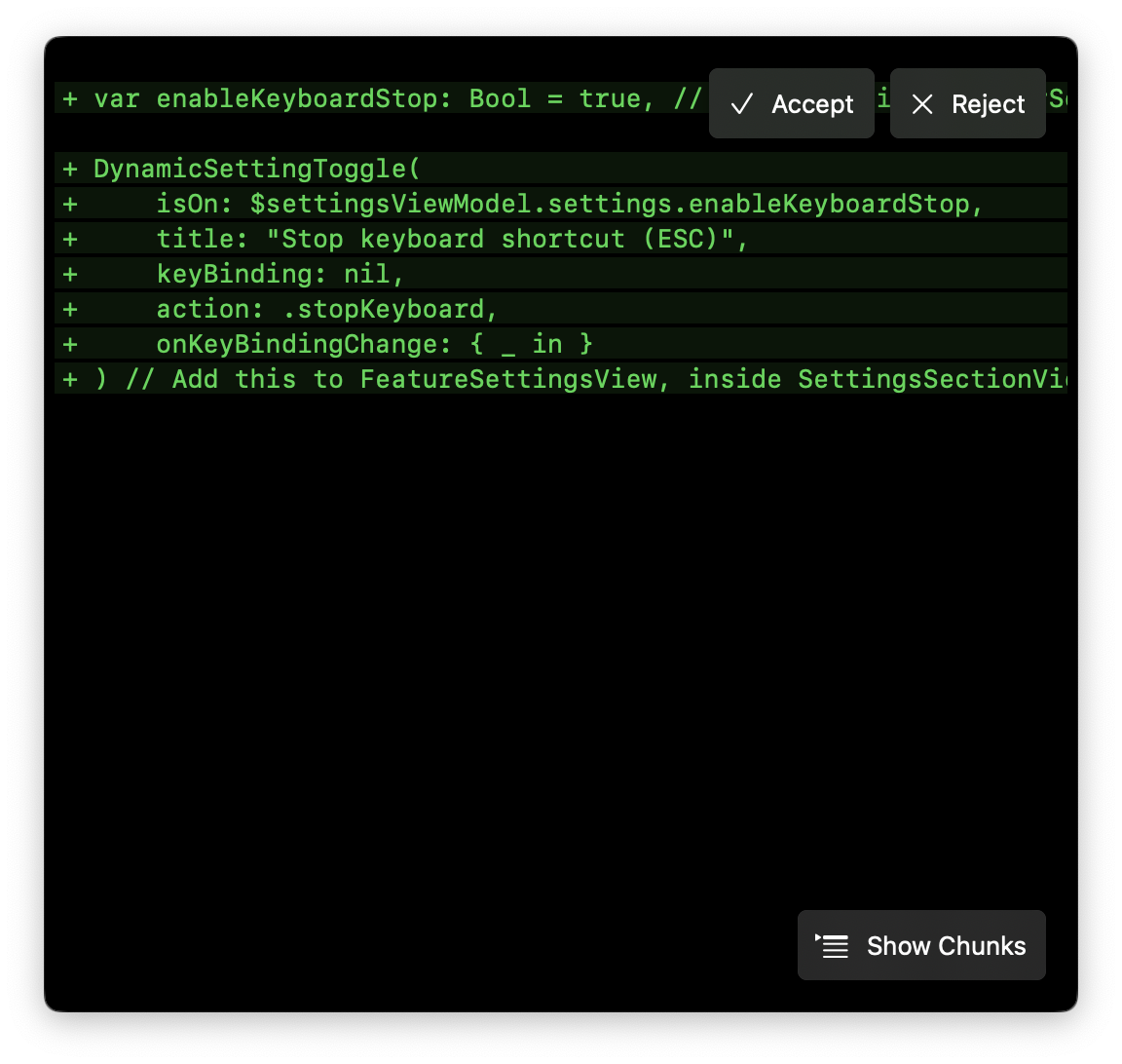
 * Press Enter to accept the current suggestion
* Press Esc to dismiss suggestions
* Click retry button to generate new suggestions
* Press Enter to accept the current suggestion
* Press Esc to dismiss suggestions
* Click retry button to generate new suggestions
 ## Tab Completion
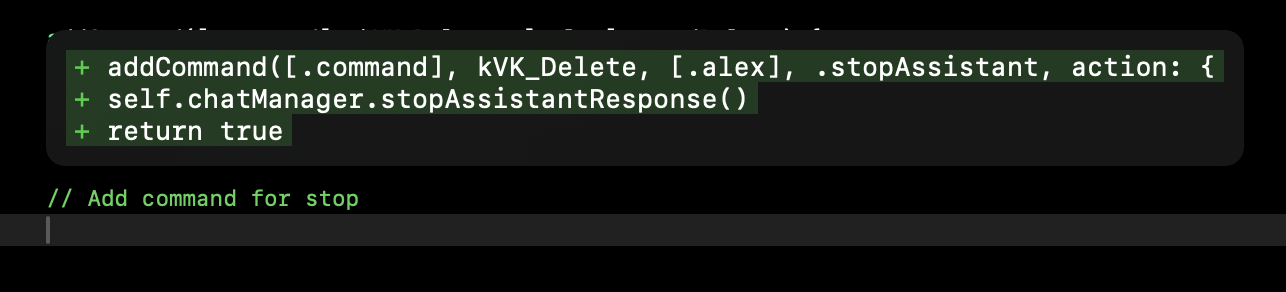 Alex Sidebar provides high-performance autocomplete suggestions with just 300-350ms latency - faster than GitHub Copilot and Xcode's built-in completions.
* Press Tab to accept suggestion
* Suggestions appear mid-sentence as you type
* Context-aware code suggestions
* Variable and method completions
### Enabling Autocomplete
To configure autocomplete:
1. Open Settings
2. Go to Features & Keybindings
3. Find "Autocomplete Settings"
4. Configure the available options:
* **Enable Autocomplete**: Turn the feature on/off
* **Use Fast Autocomplete**: Switch to an optimized model that provides \~50% faster completions, ideal for rapid development
* **Inline completion**: Configure the ⌘ + K shortcut
The base autocomplete model has been optimized for better performance with large files (>600 lines).
## Best Practices
* Use Claude 3.5 Sonnet for complex logic
* Choose GPT-4 for balanced performance
* Select Gemini Flash 2.0 for quick completions
* Use Command + K for larger completions
* Try different models if results aren't ideal
* Use retry option for alternative suggestions
* Tab complete for quick suggestions
## SwiftUI Code Examples
Here are some practical examples of how Alex Sidebar's inline suggestions work with SwiftUI code:
Start typing a basic SwiftUI view and let inline suggestions help:
```swift theme={null}
struct ContentView: View {
var body: some View {
// Type "VStack", wait for a bit and then press TAB
VStack(spacing: 16) {
Text("Hello, World!")
.font(.title)
.foregroundColor(.blue)
Button("Tap me") {
// Suggestions will offer action implementations
}
}
}
}
```
Get intelligent suggestions for SwiftUI property wrappers:
```swift theme={null}
struct TodoView: View {
// Type "@St" and use Tab completion
@State private var taskTitle = ""
// Type "@Ob" for Observable properties
@ObservedObject var viewModel: TodoViewModel
var body: some View {
Form {
TextField("Task Title", text: $taskTitle)
// Suggestions will offer common modifiers
}
}
}
```
Get suggestions for custom view modifiers:
```swift theme={null}
struct CardModifier: ViewModifier {
// Type "func" and let suggestions complete the method
func body(content: Content) -> some View {
content
.padding()
.background(Color.white)
.cornerRadius(10)
.shadow(radius: 5)
}
}
// Usage example with inline suggestions
Text("Card Content")
.modifier(CardModifier())
```
The examples above demonstrate common SwiftUI patterns where inline
suggestions are particularly helpful. As you type these patterns, Alex Sidebar
will suggest: - Property wrapper completions - View modifier chains - Common
SwiftUI view structures - Closure completions
While AI suggestions are powerful, always review generated code to ensure it
meets your requirements and follows your project's conventions.
Alex Sidebar provides high-performance autocomplete suggestions with just 300-350ms latency - faster than GitHub Copilot and Xcode's built-in completions.
* Press Tab to accept suggestion
* Suggestions appear mid-sentence as you type
* Context-aware code suggestions
* Variable and method completions
### Enabling Autocomplete
To configure autocomplete:
1. Open Settings
2. Go to Features & Keybindings
3. Find "Autocomplete Settings"
4. Configure the available options:
* **Enable Autocomplete**: Turn the feature on/off
* **Use Fast Autocomplete**: Switch to an optimized model that provides \~50% faster completions, ideal for rapid development
* **Inline completion**: Configure the ⌘ + K shortcut
The base autocomplete model has been optimized for better performance with large files (>600 lines).
## Best Practices
* Use Claude 3.5 Sonnet for complex logic
* Choose GPT-4 for balanced performance
* Select Gemini Flash 2.0 for quick completions
* Use Command + K for larger completions
* Try different models if results aren't ideal
* Use retry option for alternative suggestions
* Tab complete for quick suggestions
## SwiftUI Code Examples
Here are some practical examples of how Alex Sidebar's inline suggestions work with SwiftUI code:
Start typing a basic SwiftUI view and let inline suggestions help:
```swift theme={null}
struct ContentView: View {
var body: some View {
// Type "VStack", wait for a bit and then press TAB
VStack(spacing: 16) {
Text("Hello, World!")
.font(.title)
.foregroundColor(.blue)
Button("Tap me") {
// Suggestions will offer action implementations
}
}
}
}
```
Get intelligent suggestions for SwiftUI property wrappers:
```swift theme={null}
struct TodoView: View {
// Type "@St" and use Tab completion
@State private var taskTitle = ""
// Type "@Ob" for Observable properties
@ObservedObject var viewModel: TodoViewModel
var body: some View {
Form {
TextField("Task Title", text: $taskTitle)
// Suggestions will offer common modifiers
}
}
}
```
Get suggestions for custom view modifiers:
```swift theme={null}
struct CardModifier: ViewModifier {
// Type "func" and let suggestions complete the method
func body(content: Content) -> some View {
content
.padding()
.background(Color.white)
.cornerRadius(10)
.shadow(radius: 5)
}
}
// Usage example with inline suggestions
Text("Card Content")
.modifier(CardModifier())
```
The examples above demonstrate common SwiftUI patterns where inline
suggestions are particularly helpful. As you type these patterns, Alex Sidebar
will suggest: - Property wrapper completions - View modifier chains - Common
SwiftUI view structures - Closure completions
While AI suggestions are powerful, always review generated code to ensure it
meets your requirements and follows your project's conventions.