> ## Documentation Index
> Fetch the complete documentation index at: https://alexcode.ai/docs/llms.txt
> Use this file to discover all available pages before exploring further.
# Git Integration
> Using AI-powered Git features in Alex Sidebar
Alex Sidebar provides Git integration to quickly manage your version control workflow with AI-powered commit message suggestions.
## AI-Powered Commit Messages
* Automatically generates contextual commit message suggestions
* Preview generated messages before committing
* One-click commit with suggested messages
## Quick Access
* Use **CMD+Shift+G** shortcut to open the Git status panel
* Select and manage multiple files at once
* View both staged and unstaged changes
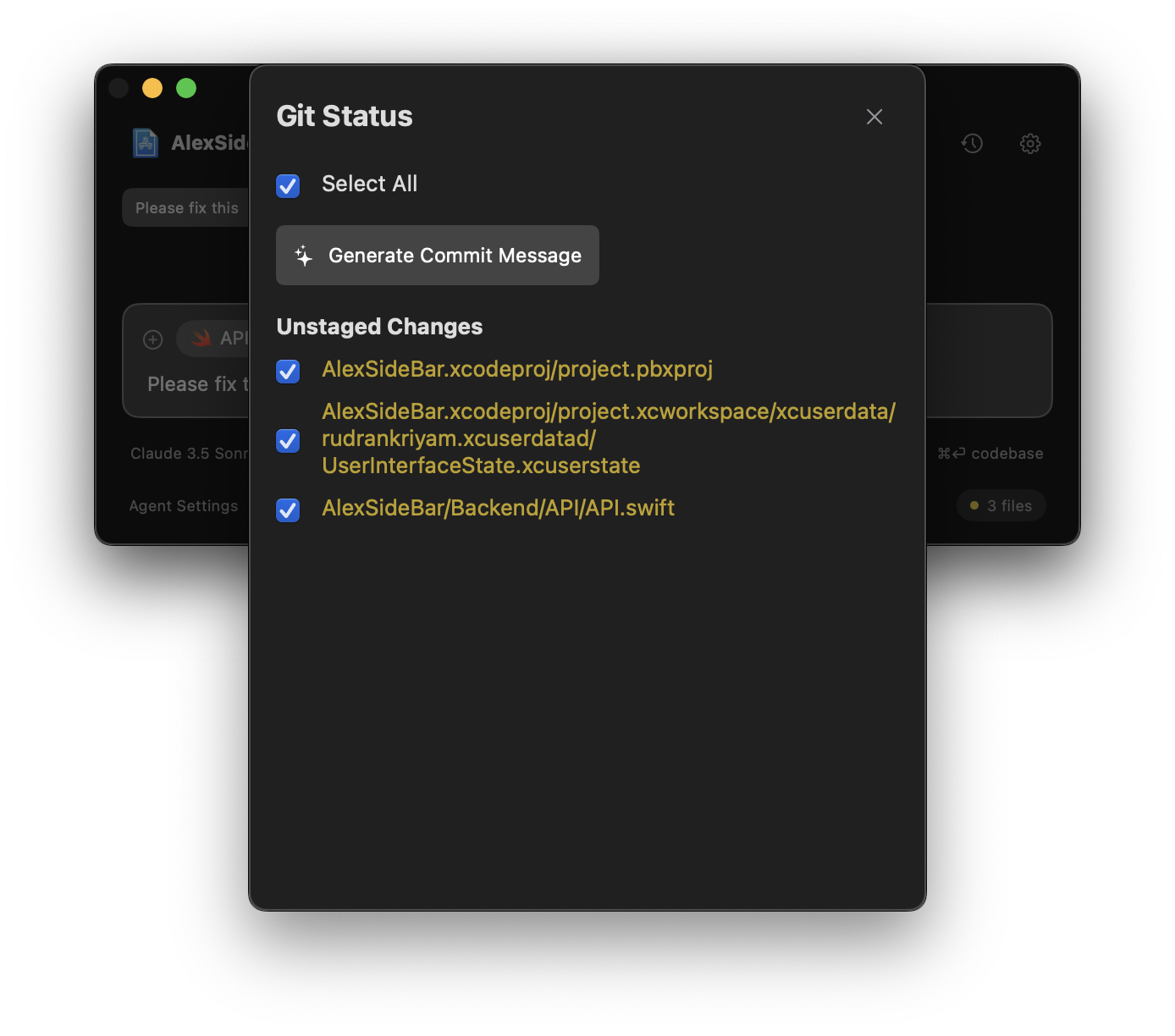 The Git panel shows all your staged and unstaged changes, making it easy to review before committing.
## Using Git Integration
Press **CMD+Shift+G** to open the Git status panel.
* Use the checkboxes to select individual files
* Click "Select All" to include all changed files
* Click "Generate Commit Message" to get AI suggestions
* Review the preview of the suggested message
* Use "Copy Message" to copy to clipboard if needed
The Git panel shows all your staged and unstaged changes, making it easy to review before committing.
## Using Git Integration
Press **CMD+Shift+G** to open the Git status panel.
* Use the checkboxes to select individual files
* Click "Select All" to include all changed files
* Click "Generate Commit Message" to get AI suggestions
* Review the preview of the suggested message
* Use "Copy Message" to copy to clipboard if needed
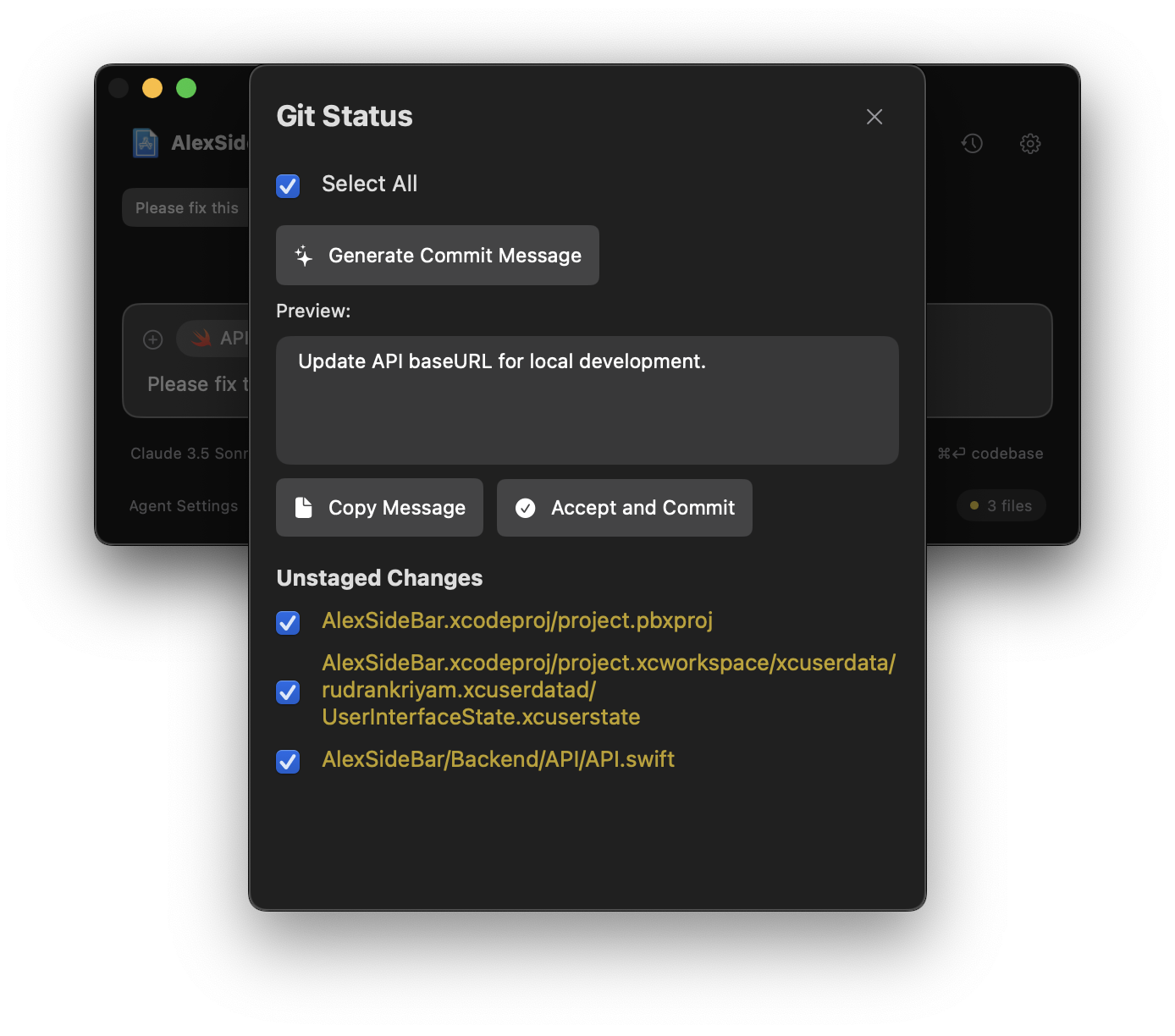 Click "Accept and Commit" to commit your changes with the selected message.
## Configuration
The Git integration works out of the box with your existing Git configuration. No additional setup is required.
Make sure your repository is properly initialized with Git before using these features.
Click "Accept and Commit" to commit your changes with the selected message.
## Configuration
The Git integration works out of the box with your existing Git configuration. No additional setup is required.
Make sure your repository is properly initialized with Git before using these features.