System Prompts
Global prompts that apply across all projects. These define your general preferences and requirements.
Project Prompts
Specific prompts that apply only to the current project, working in combination with system prompts.
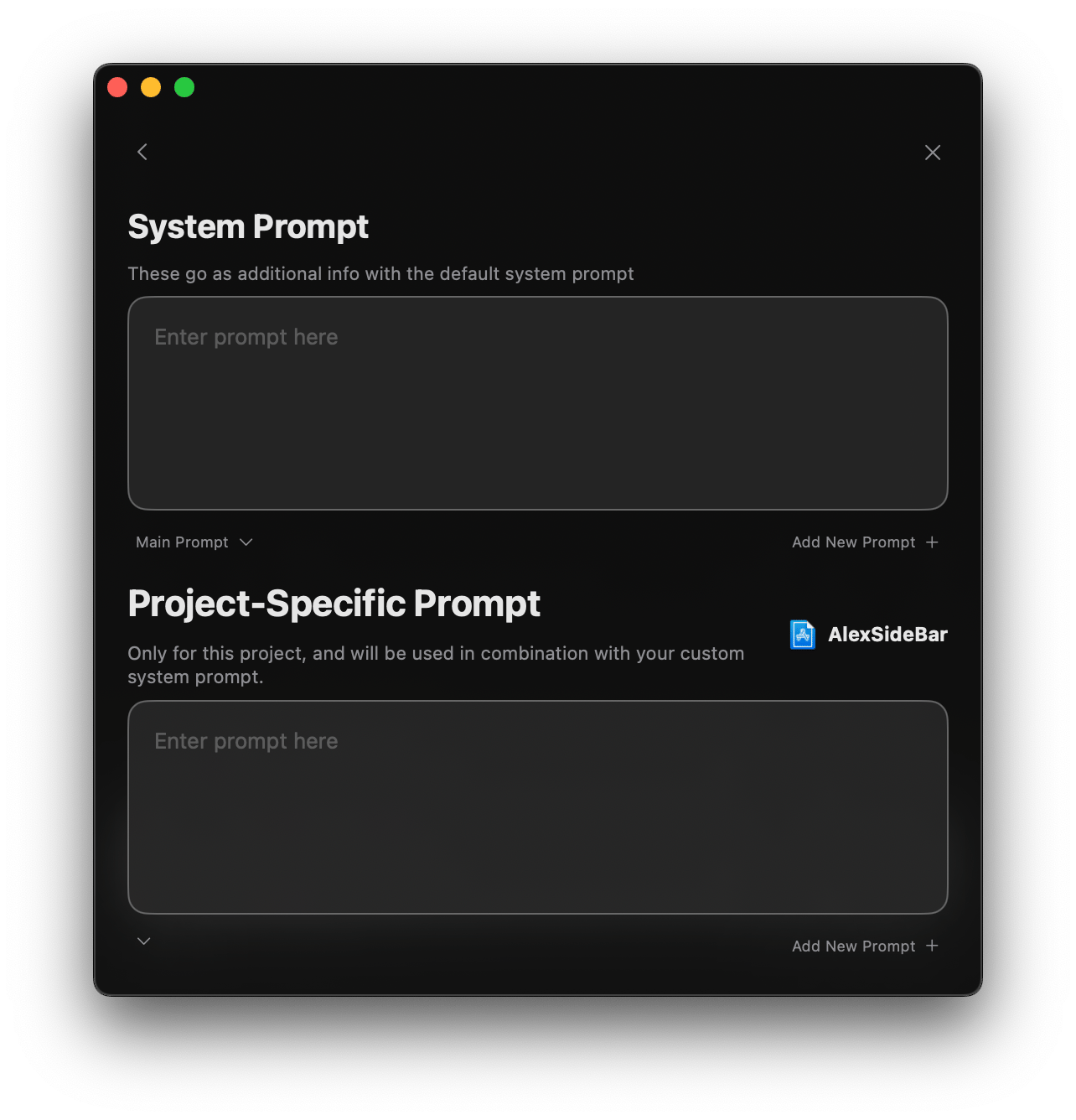
Prompt Configuration Interface
Key Components
- System Prompt Section
- Text area for global prompt configuration
- Dropdown menu to select active prompt
- “Add New Prompt +” button for creating additional prompts
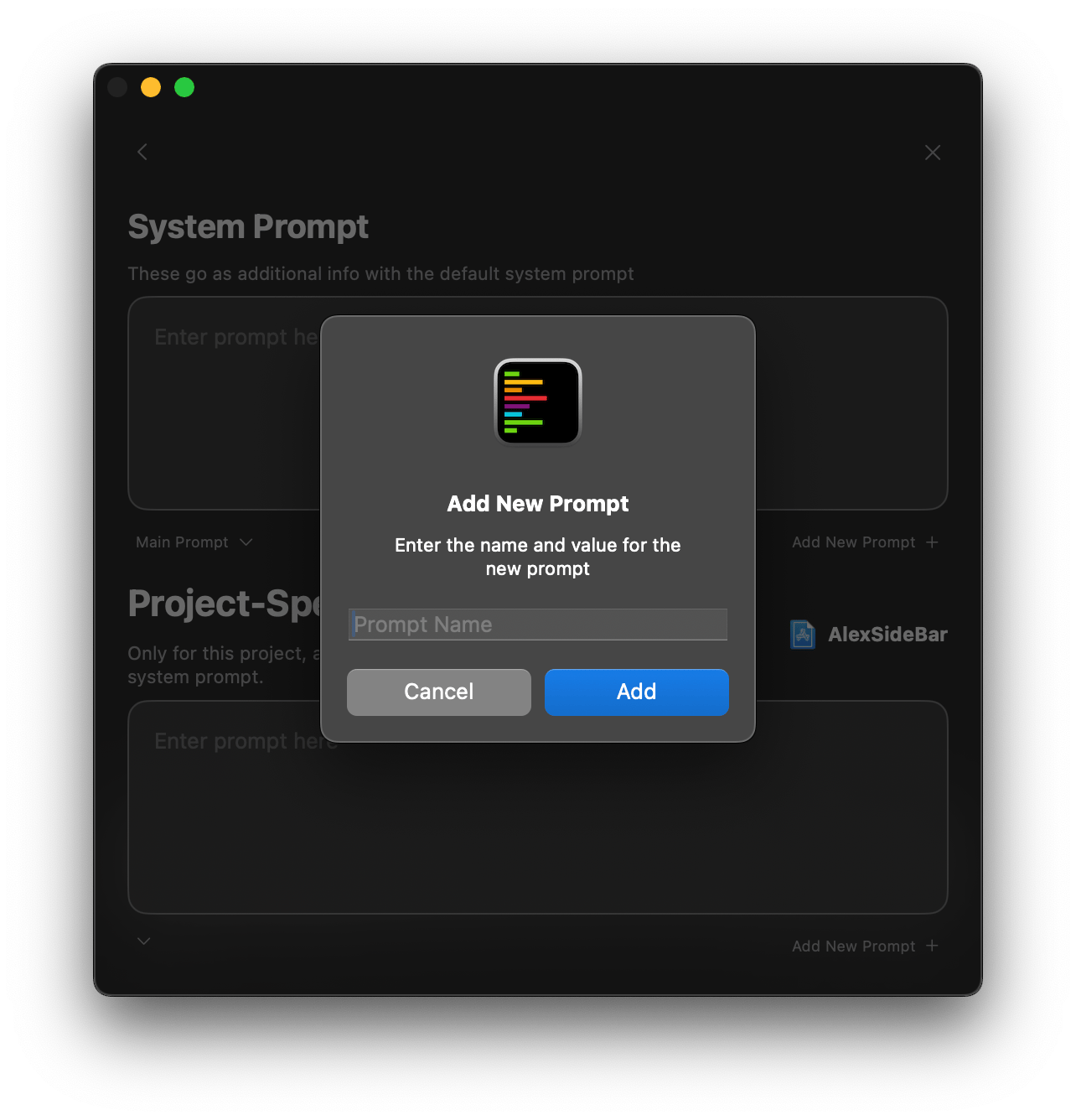
- Project-Specific Section
- Dedicated prompt area for current project
- Project identifier display
- Automatic combination with system prompt
Changes to prompts take effect immediately and persist across sessions.
SwiftUI Project Example
Here are some examples of how to configure prompts for a SwiftUI project to take inspiration from.System Prompt: SwiftUI Expert
Project Prompt: Custom App
API Integration
Performance Focus
Best Practices
Keep It Focused
- One primary goal per prompt
- Clear, specific instructions
- Avoid redundant information
Maintain Context
- Reference existing patterns
- Include architecture details
- Specify dependencies
Regular Updates
- Update as project evolves
- Reflect new requirements
- Remove obsolete patterns
Team Alignment
- Share effective prompts
- Standardize across team
- Document prompt purposes